didactical.ai

See LORE in action

From your manual to knowing who needs you.

Six steps, start to finish. You bring the document you already teach from. LORE turns it into a course students can listen to, checks what each of them knows, and tells you who is stuck and why.

The tour in 70 seconds

No sound. The captions are part of the picture. Every screen is the live product, shown with sample students.
Read the captions
  1. Every manual is a course waiting to be taught.
  2. Drop in the manual you already teach from.
  3. Lessons, quizzes, corrections and a two-host podcast, recorded for you.
  4. Read and change any lesson. Review first, or let it publish on its own.
  5. On any phone, with every word highlighted as it is spoken.
  6. Switch narrators, or hear the same lesson as a two-host podcast.
  7. A short check after each lesson, drawn from the lesson itself.
  8. A miss brings a different explanation, not a red X.
  9. You see who needs help, and why, in plain words.
  10. Every student and every lesson, on one screen.
  11. What was tried, what worked, and whether it stuck days later.
  12. See your own manual as a course. didactical.ai
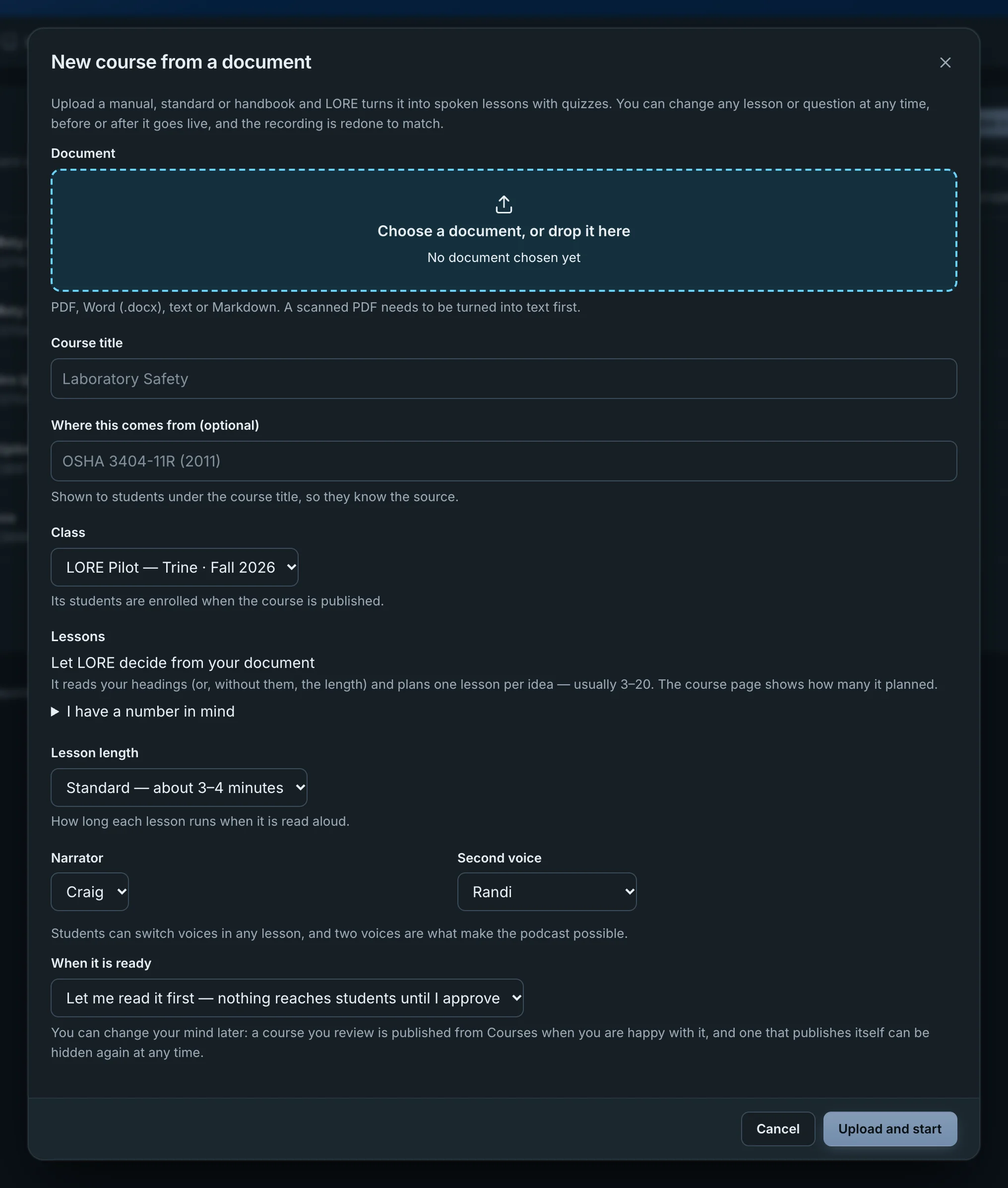
The New course from a document form in the LORE console: a dashed drop zone reading Choose a document, or drop it here; fields for course title, source and class; Let LORE decide the number of lessons; lesson length; narrator Craig with Randi as second voice; and When it is ready set to Let me read it first, nothing reaches students until I approve.

Step 1

Drop in your manual.

Upload the PDF, Word file or text you already teach from. LORE reads its headings and plans one lesson per idea. You pick the class, the lesson length and the two voices.

  • No reformatting. A lab manual, a standard, a handbook or your own notes.
  • Your class, already attached. Its students are enrolled when the course goes live.
Step 2

LORE writes the course. You decide when it goes out.

Lessons, quick checks, course corrections and a two-host podcast, all narrated. Read and change anything first, or let it publish on its own. Change a lesson later and the recording is redone to match.

  • Questions come from the lesson. Each one quotes the lesson text it tests. One that can’t is thrown out.
  • Review or autopilot. “Let me read it first” holds everything back until you approve.
  • Nothing is lost. Every edit is kept, and undo takes it back.
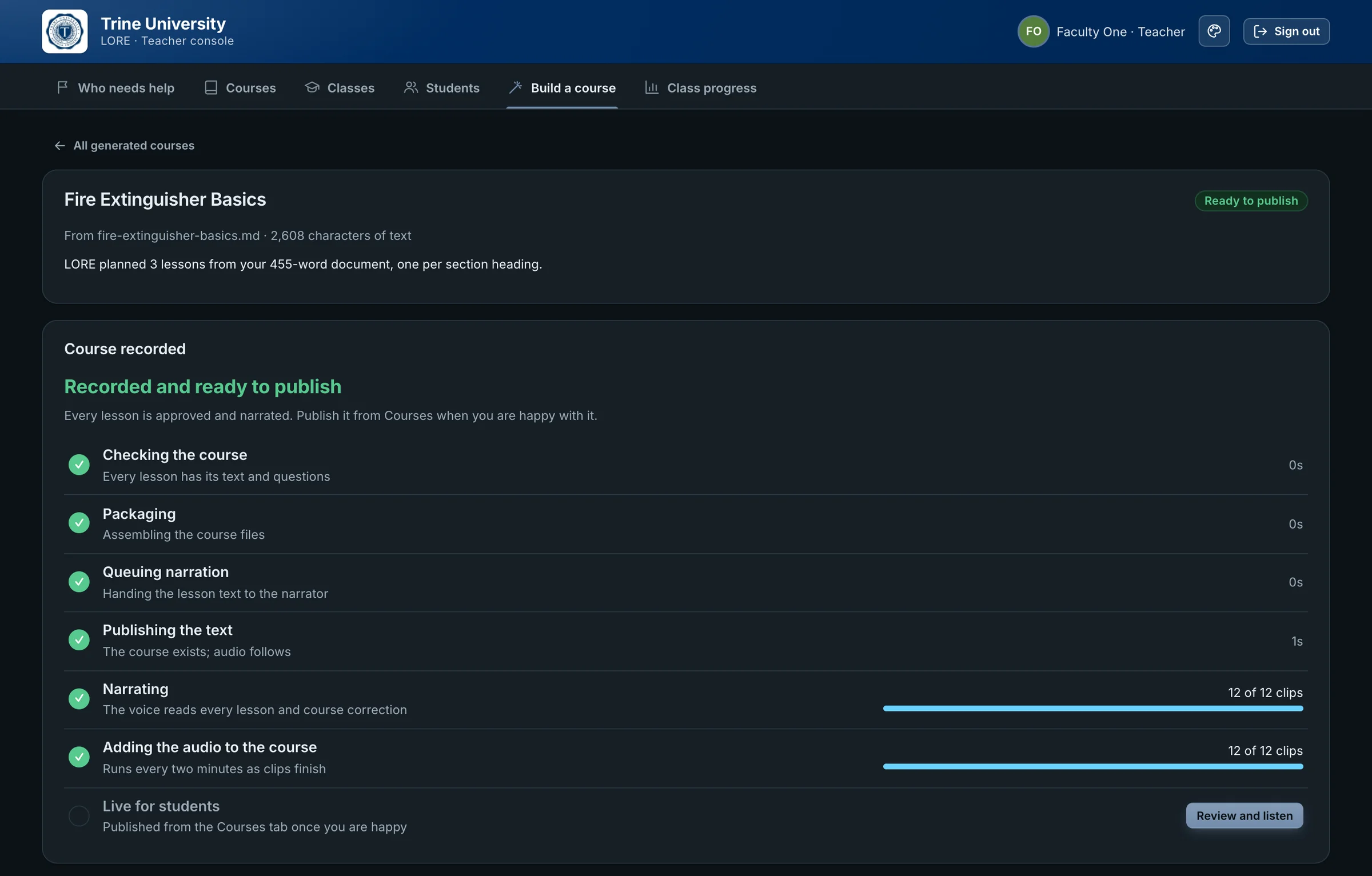
A finished build in the LORE console: Fire Extinguisher Basics, planned as 3 lessons from a 455-word document, marked Recorded and ready to publish, with every stage ticked, including Narrating, 12 of 12 clips.
A finished build: planned, written, checked and recorded, waiting for the teacher to publish it.
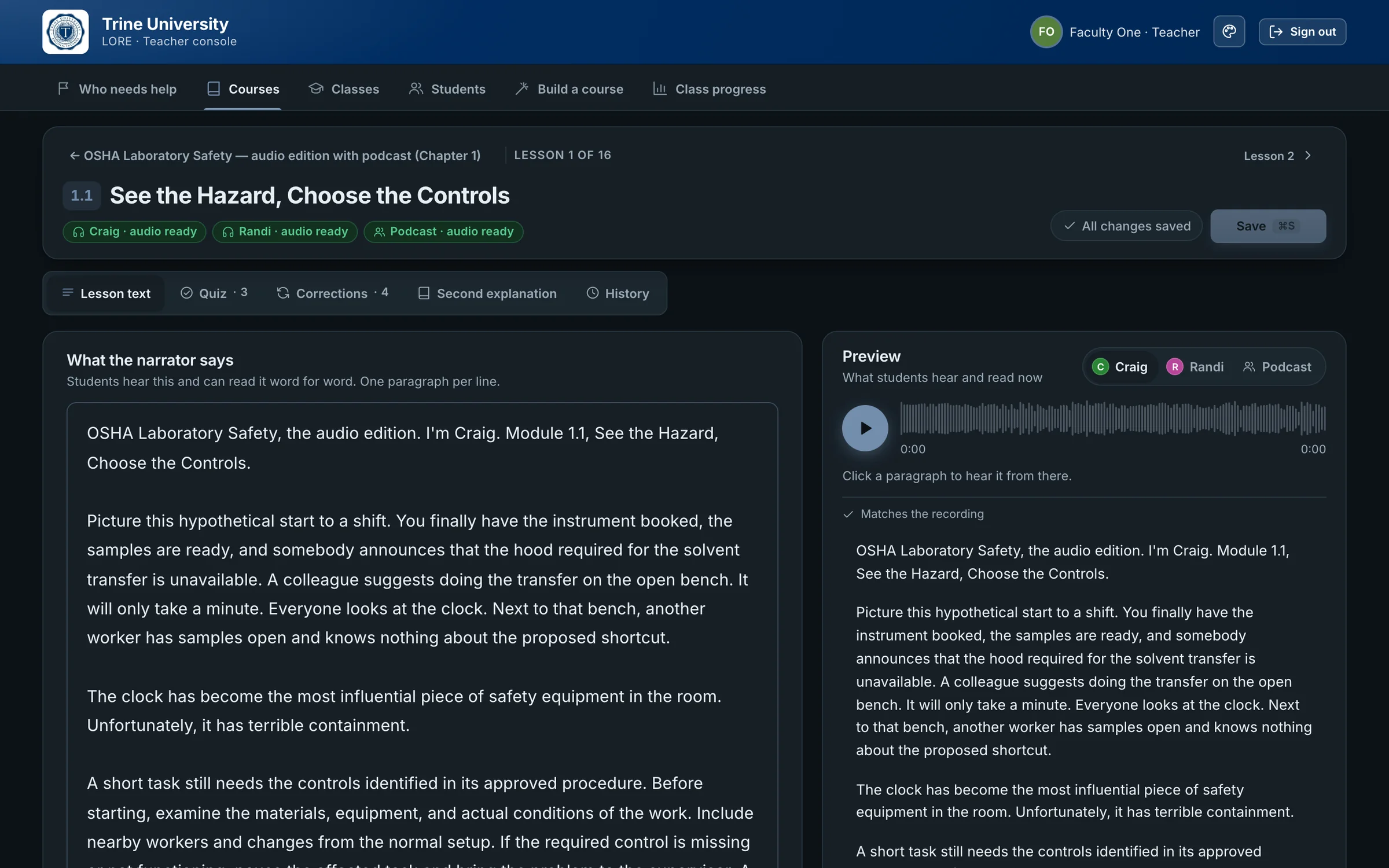
The lesson editor for lesson 1.1, See the Hazard, Choose the Controls: the narration text on the left, a preview on the right with Craig, Randi and Podcast, and tabs for Quiz, Corrections, Second explanation and History. Badges show Craig, Randi and Podcast audio ready.
The lesson editor. What the narrator says on the left, what students hear and read on the right.
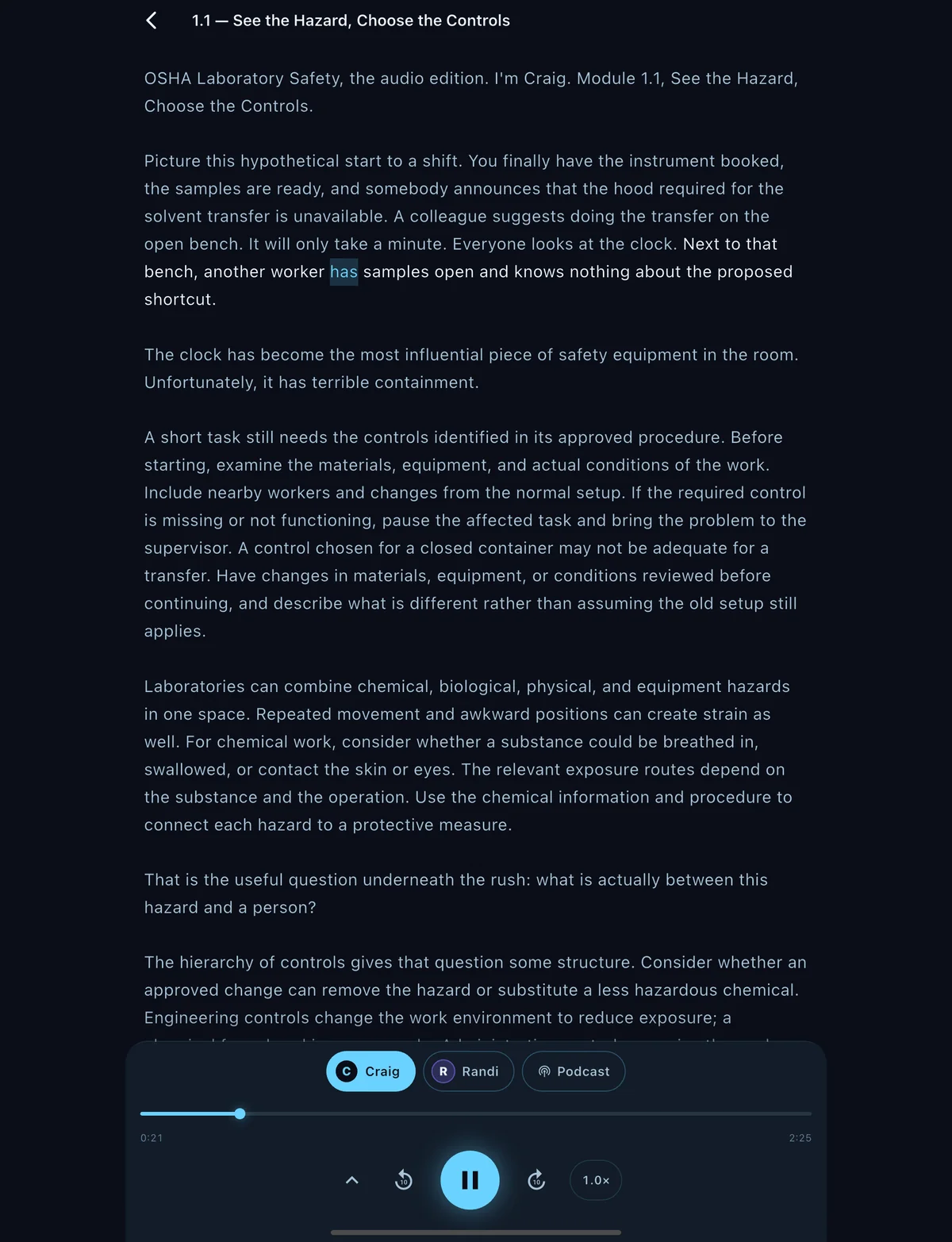
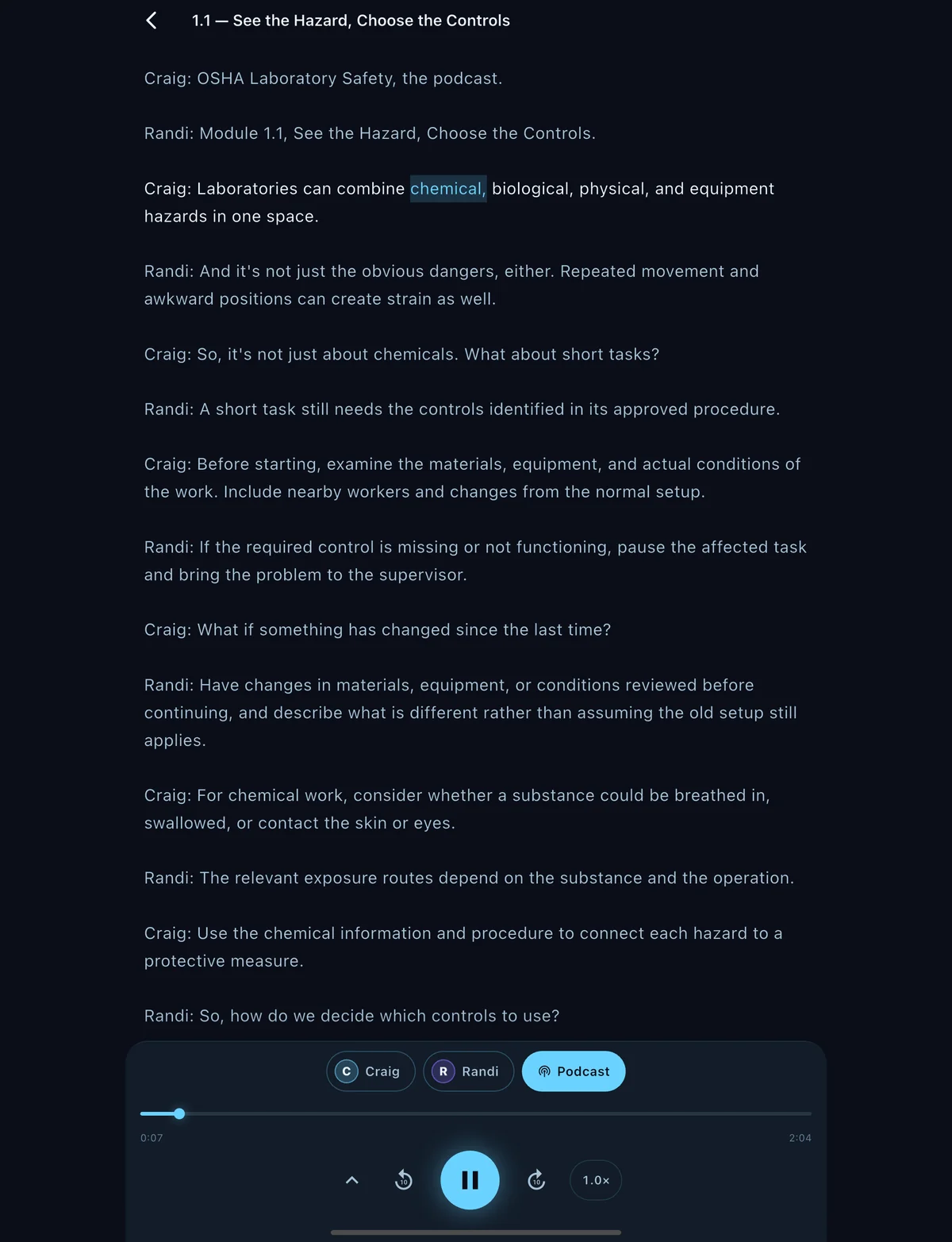
A lesson playing in the LORE app on an iPad: paragraphs of lesson text with the spoken word highlighted, and a player with Craig selected, Randi and Podcast as the other choices. The same lesson as a podcast: turns alternate between Craig and Randi, with the current word highlighted and Podcast selected in the player.

Step 3

Students listen anywhere.

Every lesson plays like a podcast and reads like a page. The words light up as they are spoken, so a student can look away on the walk to class and pick the thread back up.

  • Two narrators. Switch between Craig and Randi in any lesson.
  • Or the podcast. Both hosts talk the same lesson through, from the same approved text.
  • Any phone. It works in the browser today. The Android app is available, and the iPhone app is coming soon.

Step 4

A wrong answer brings a new explanation, not a red X.

A short check follows each lesson. Miss it, and LORE explains the same idea another way, then asks again. A student who misses again gets a way in they haven’t heard yet.

  • Different ways in. A worked example, a story, plain words, step by step.
  • Nothing new is taught. Each correction is checked against the lesson. Anything the lesson doesn’t say is flagged or refused.
  • Still stuck? LORE writes one aimed at what hasn’t landed, and shows it to you.
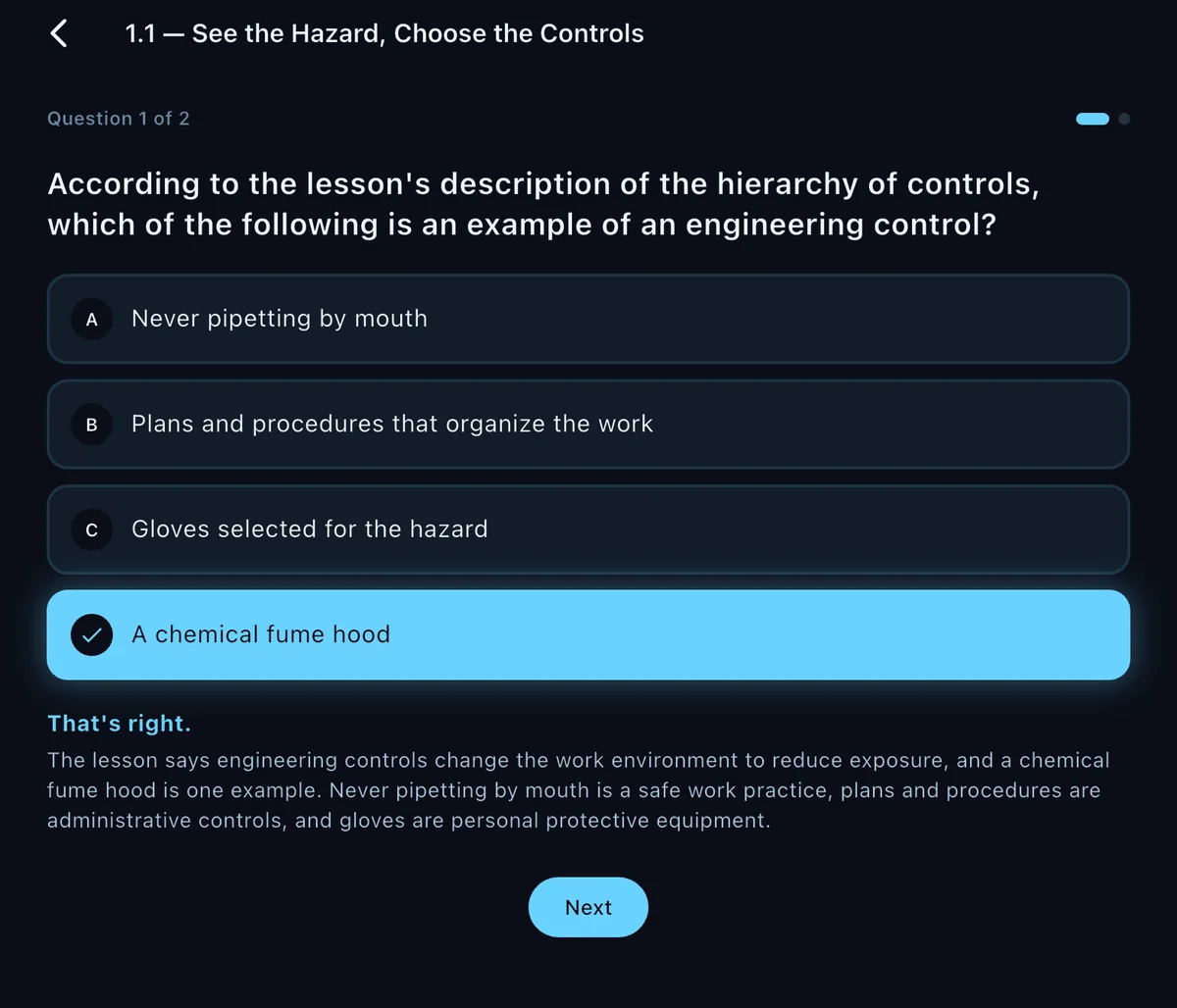
A quick check in the LORE app: which of the following is an example of an engineering control? The answer A chemical fume hood is marked That's right, with a short explanation drawn from the lesson.
Every answer is explained from the lesson, right or wrong.
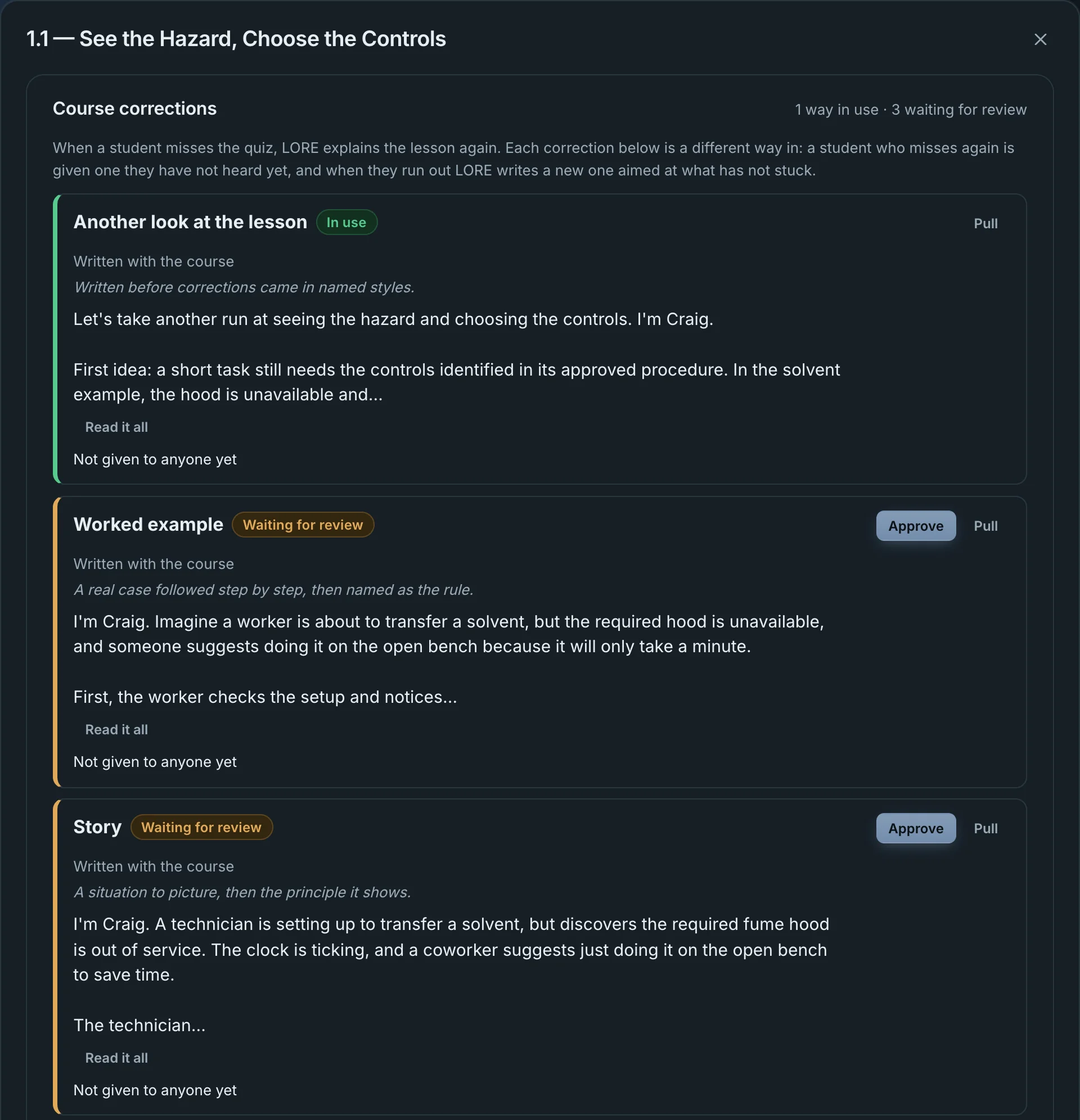
The course corrections for lesson 1.1 in the console: Another look at the lesson (in use), then a Worked example and a Story, each waiting for review with Approve and Pull buttons and the opening lines of the explanation.
The corrections behind one lesson. You approve or pull each one.

Step 5

You see who needs help, and why.

The console opens on the students who need you, with the reason in plain words: gone quiet, scoring low, reviews piling up, stuck on a lesson. One more tab shows every student on every lesson.

  • Your classes only. Figures count your own sections, not the whole course.
  • What was done about it. “Got 1.1 on the 3rd try, worked example.”
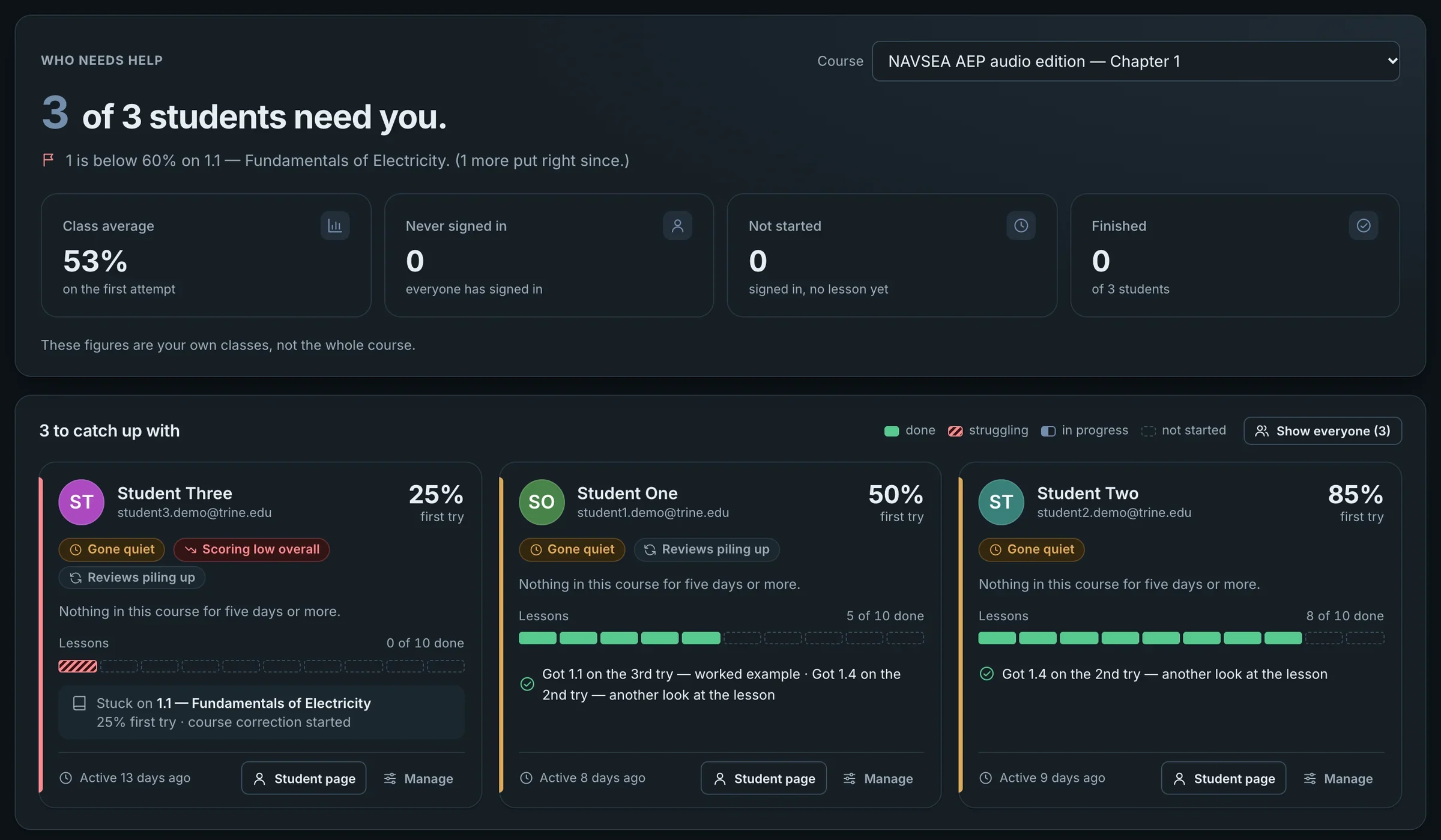
The Who needs help view: 3 of 3 students need you, a 53% class average on the first attempt, and a card for each student. Student Three is marked Gone quiet and Scoring low overall, stuck on lesson 1.1 with a course correction started. Student One got 1.1 on the third try with a worked example.
Who needs help, with sample students. Each card says why.
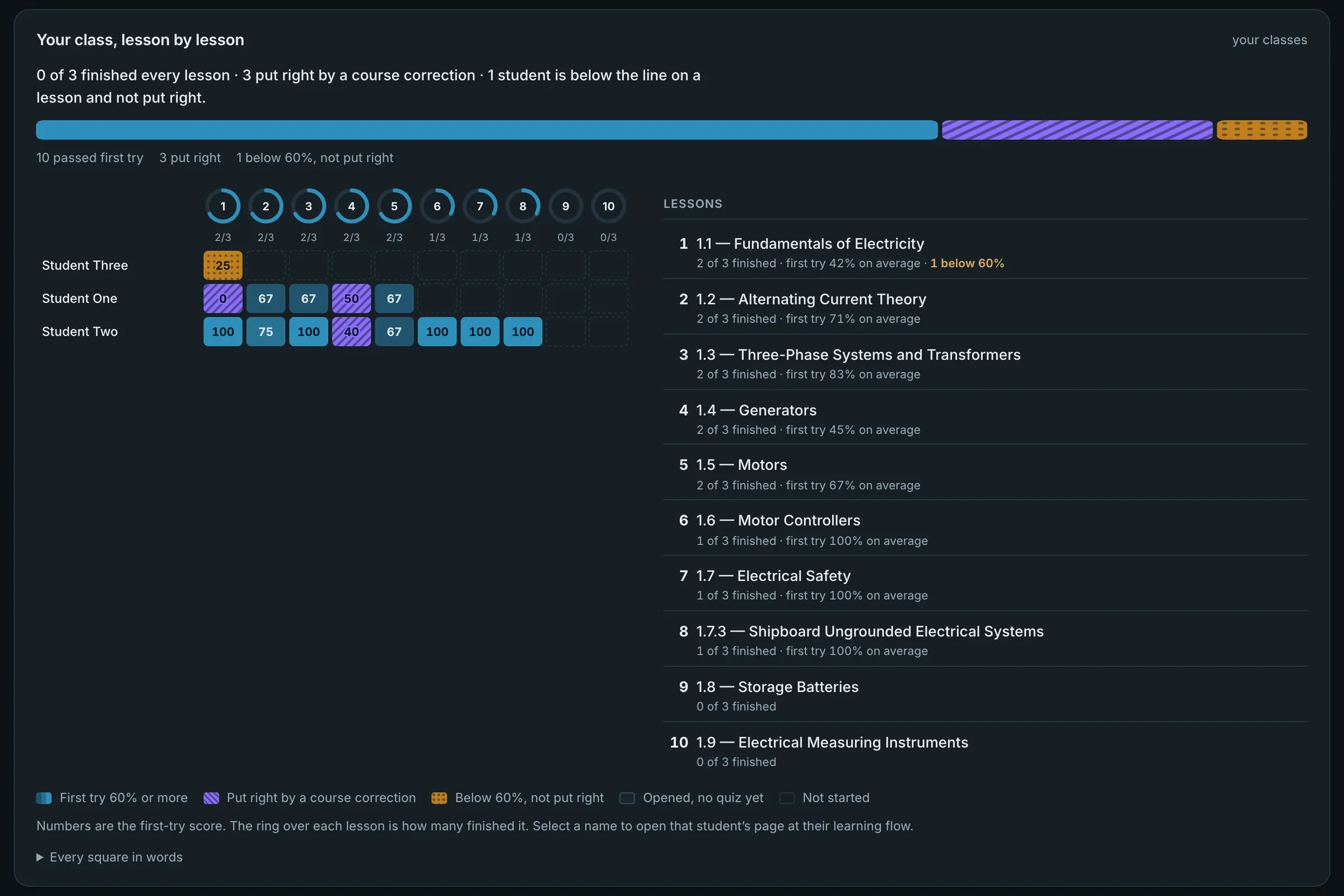
Class progress, lesson by lesson: a grid of first-try scores for three students across ten lessons. Purple hatched squares were put right by a course correction; an orange square is below 60% and not yet put right. A list beside it gives each lesson's average.
Class progress: first-try scores, and which ones a correction put right.

Step 6

Each student’s learning flow.

One line per lesson: what they heard, how the first try went, which explanation was tried, which one worked, and whether it held when the questions came back days later.

  • How they learn. Which kinds of explanation work for them, their speed, their voice.
  • Whether it stuck. Missed questions return on a schedule, and the flow shows what was remembered and what was forgotten.
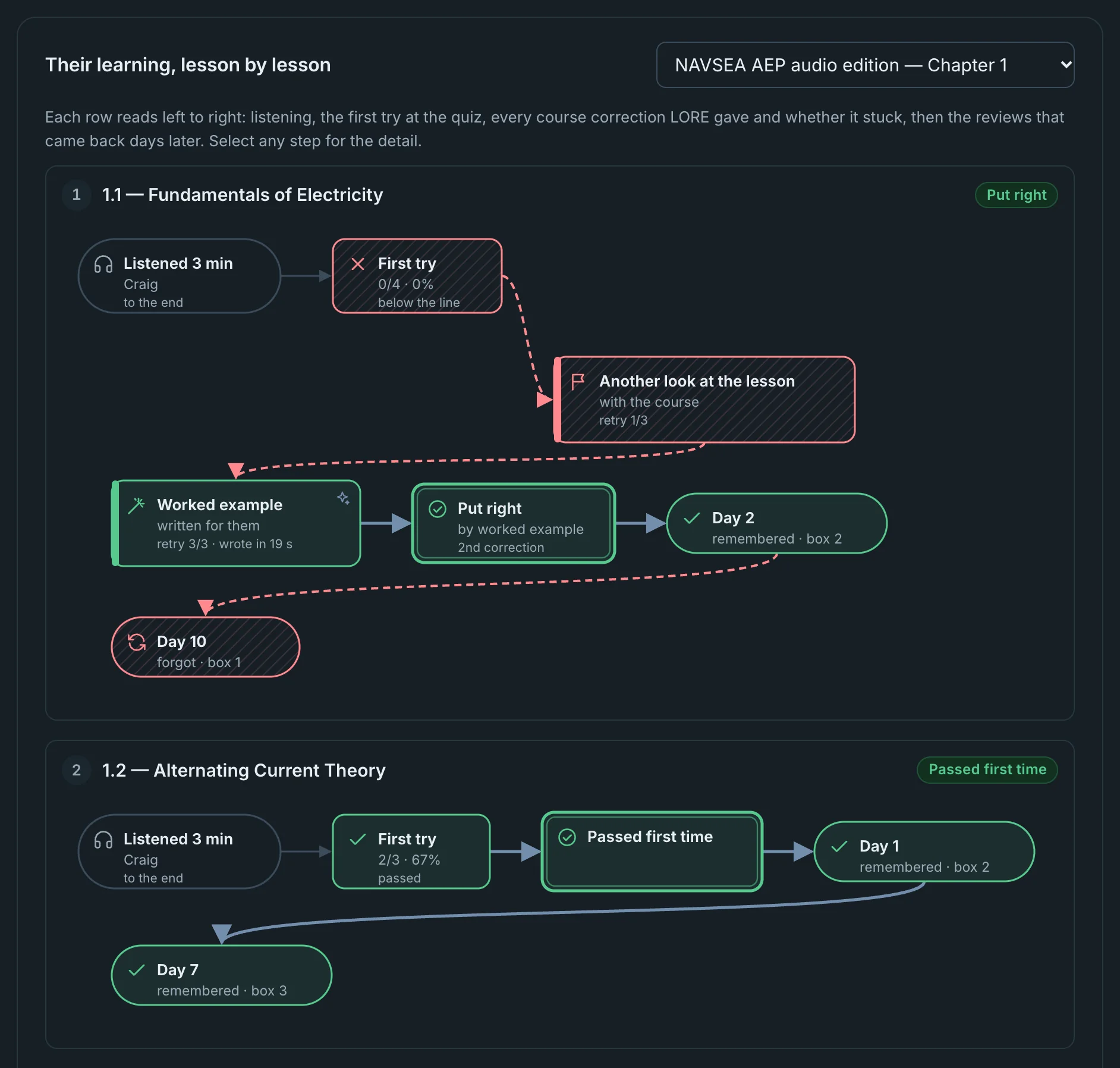
A student's learning flow for lesson 1.1, Fundamentals of Electricity: listened 3 minutes, first try 0 of 4, another look at the lesson did not stick, a worked example written for them put it right, remembered on day 2, forgot on day 10. Lesson 1.2 passed first time and was remembered on days 1 and 7.
Lesson 1.1: put right by a worked example, remembered on day 2, forgotten by day 10. So it comes back.
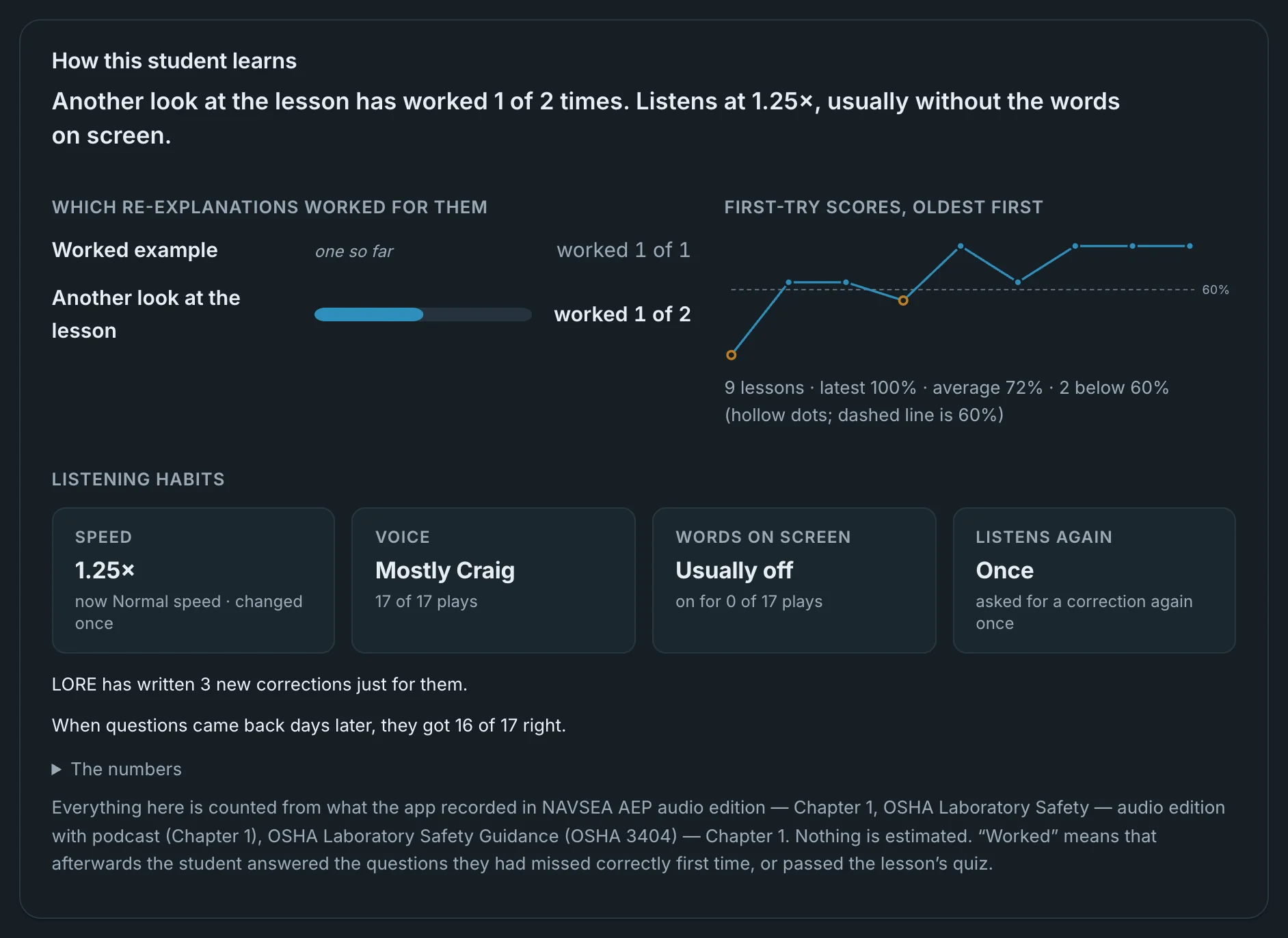
How this student learns: worked example worked 1 of 1, another look at the lesson worked 1 of 2; a chart of first-try scores rising above the 60% line; listening habits of 1.25 times speed, mostly Craig, words on screen usually off.
The same student at a glance: what works for them and how they listen.

Who it is for

A lecture course or a safety manual. The same loop.

Universities

Courses students can take on the walk to class.

Turn a lab manual, a standard or your own course notes into lessons with checks. Each teacher sees their own sections and nothing else, and sees who is falling behind while there is still time to help.

Workplace training

Procedures people remember, not just sign off.

Safety rules and onboarding manuals become short narrated lessons. Missed points come back for review, and a completion certificate carries a public verification link.

Try it with one course.

Send us the document you would start with. We’ll build the course with you and tell you plainly whether LORE is a fit.